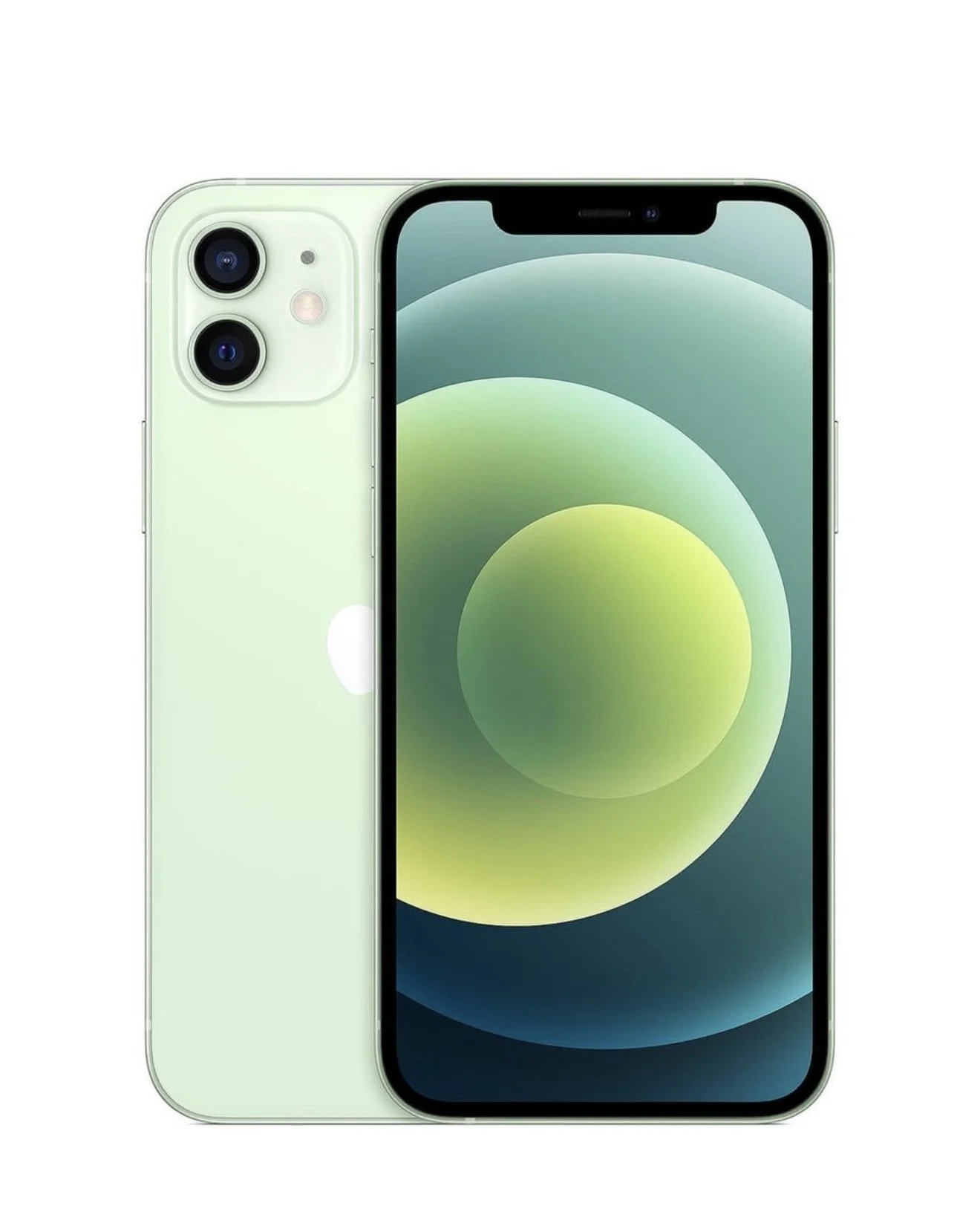
 Image 1 of 5
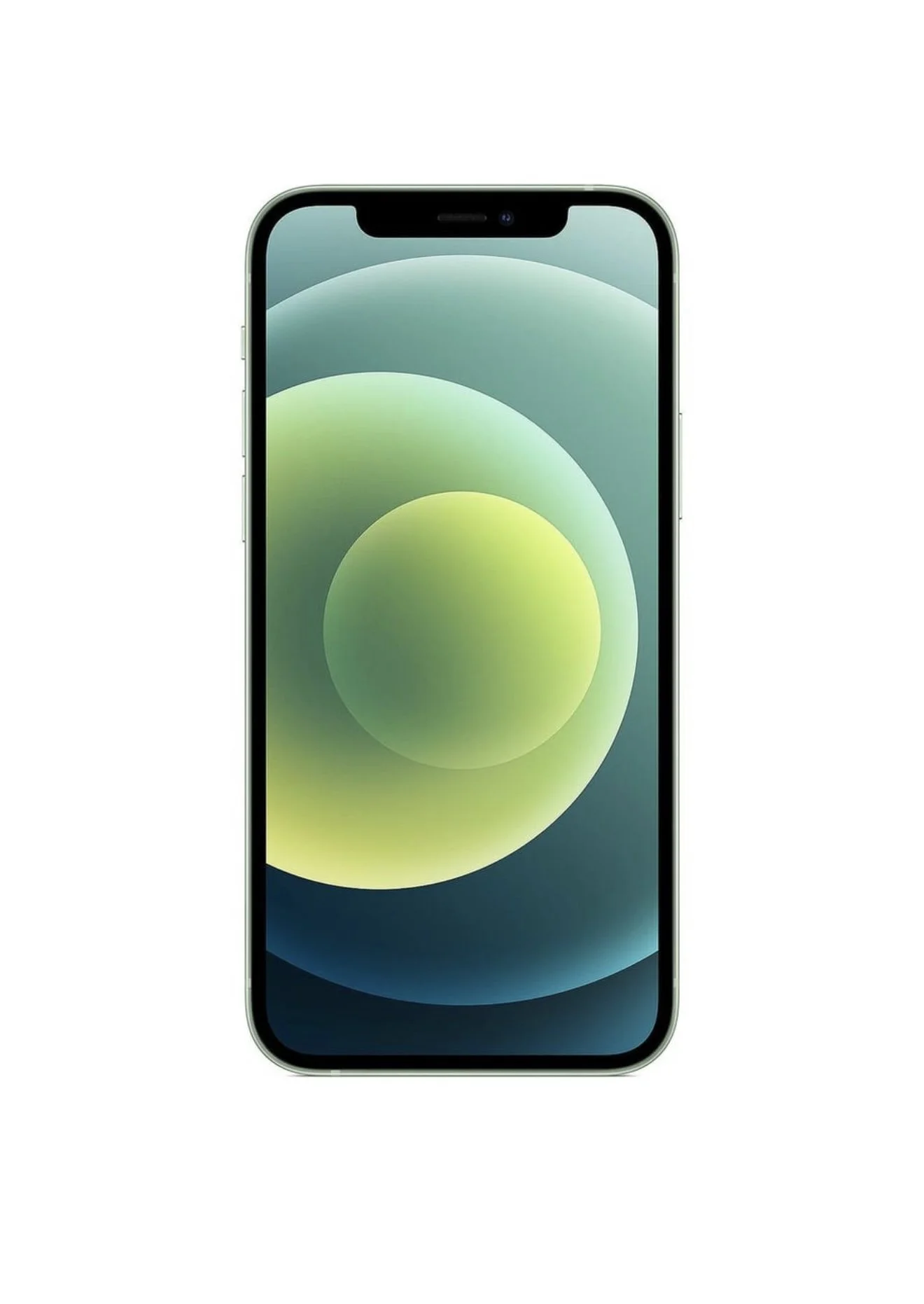 Image 2 of 5
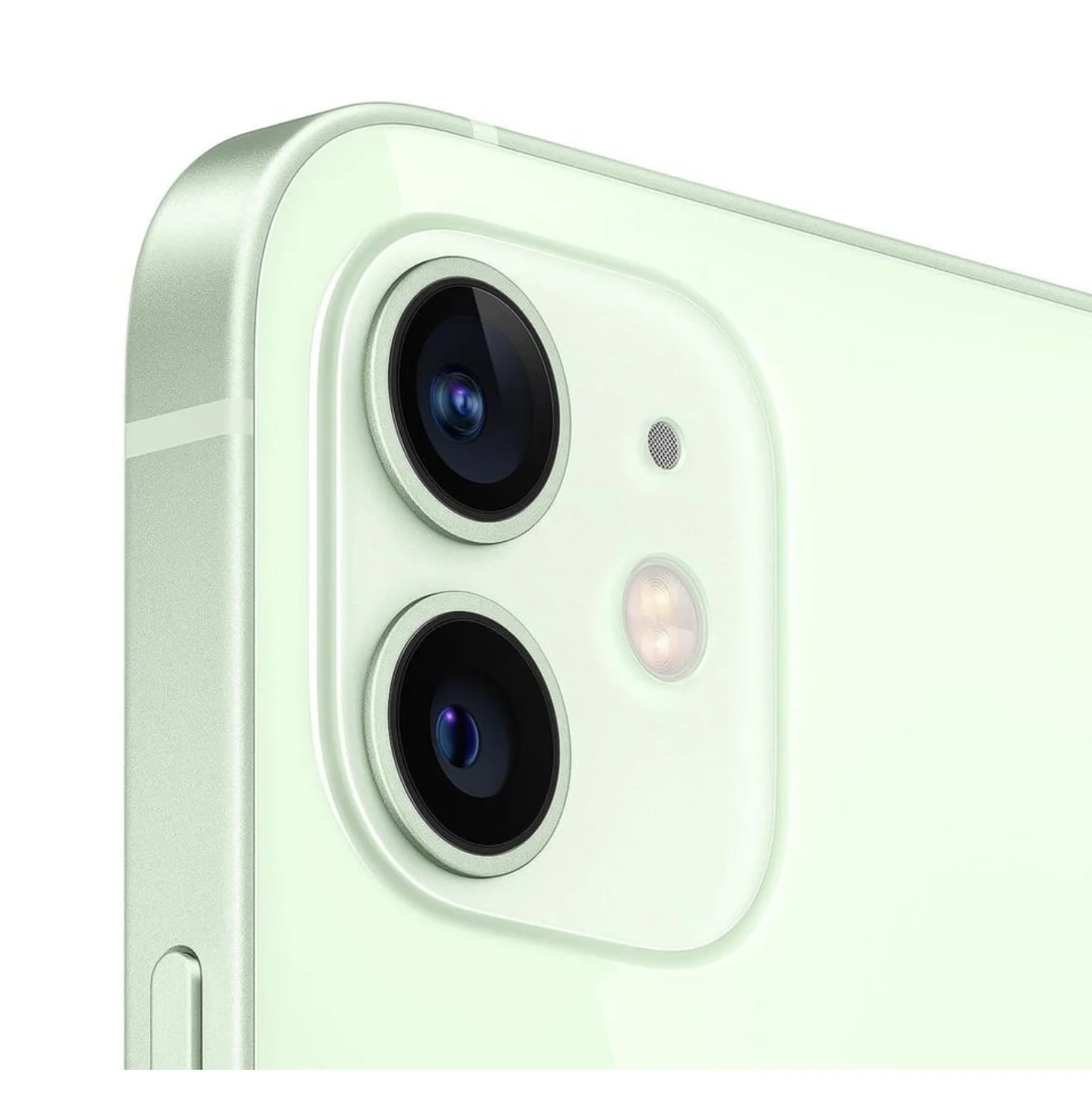 Image 3 of 5
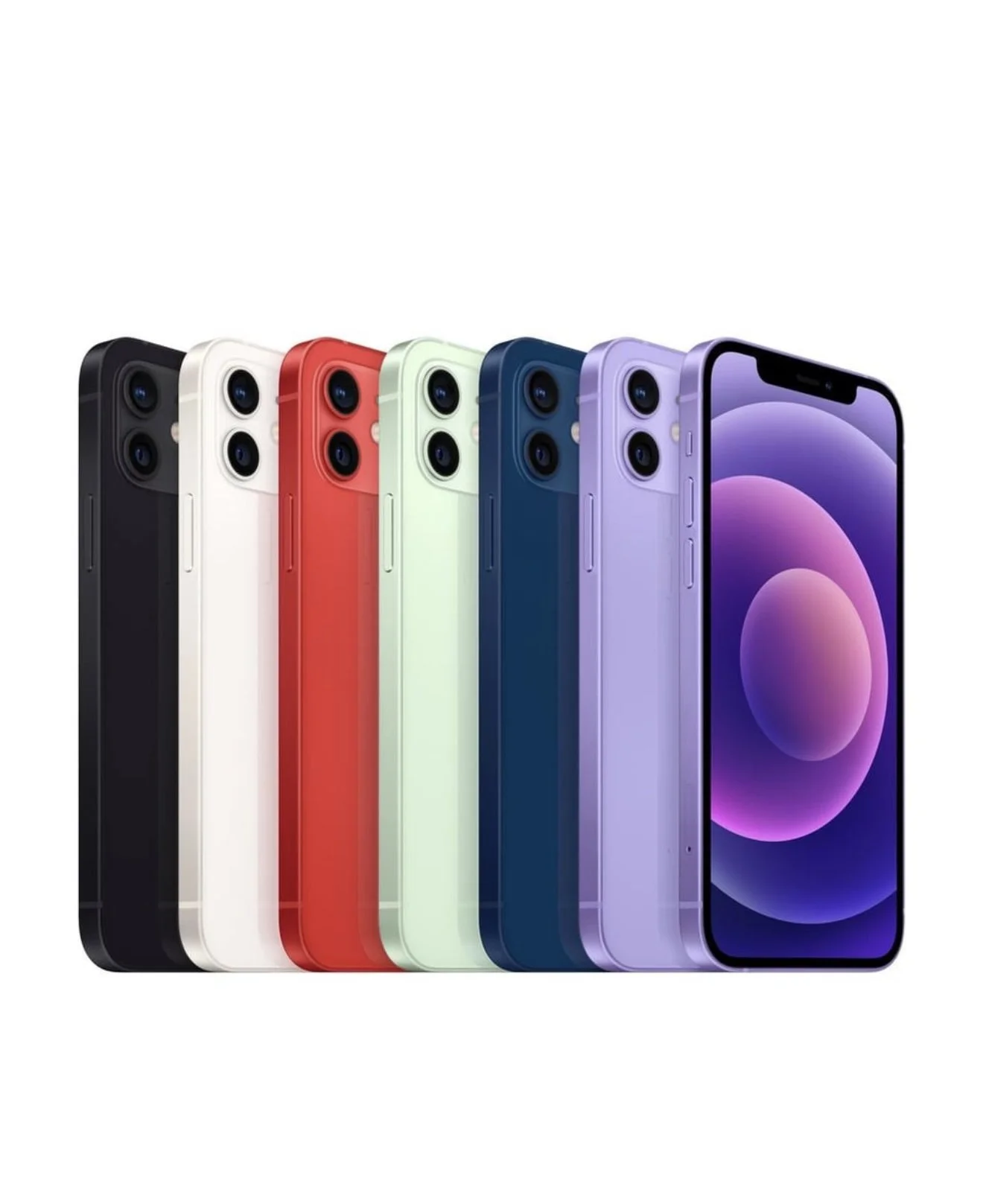 Image 4 of 5
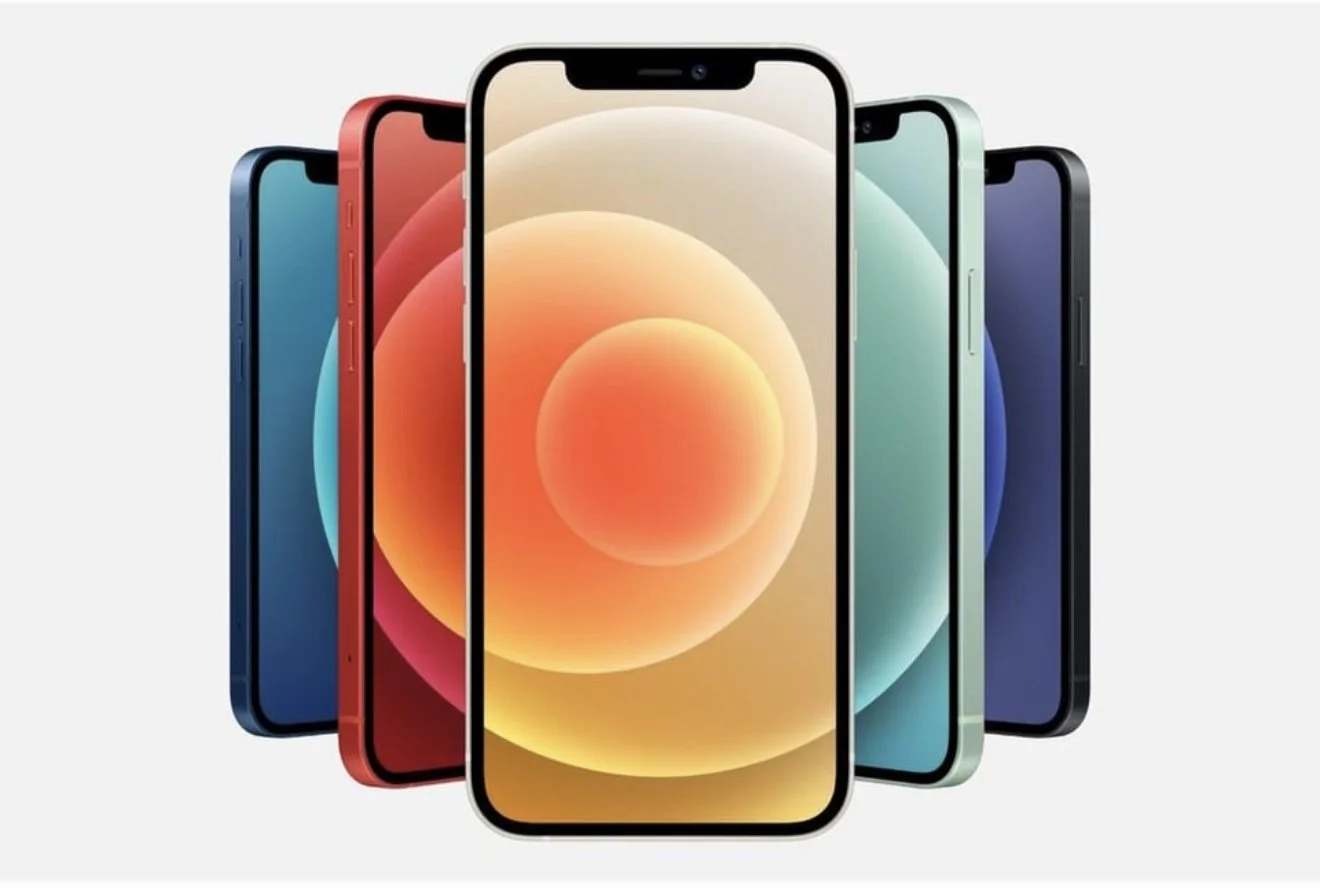 Image 5 of 5
iPhone 12 Unlocks: Using Both a Physical SIM and eSIM
The iPhone 12 supports simultaneous use of a physical nano‑SIM and an eSIM, allowing you to have two active lines on one device. Here’s what you need to know to set up and use both:
What the iPhone 12 supports
Dual SIM dual standby: The iPhone 12 can maintain two active lines (one physical SIM and one eSIM) for calls and data. If either line is in use, incoming calls on the other may go to voicemail or show as missed, depending on carrier behavior.
Multiple eSIMs: The iPhone 12 can store more than one eSIM profile, but only one eSIM can be active at a time alongside the physical SIM.
Worldwide compatibility: The iPhone 12’s SIM/eSIM features work with many carriers globally, though carrier support and feature availability (voice, SMS, data, Wi‑Fi calling, Visual Voicemail) vary.
Setting up the physical SIM
Insert the nano‑SIM: Use the SIM eject tool or a paperclip to open the SIM tray on the iPhone 12 and insert the nano‑SIM card provided by your carrier.
Restart if needed: The phone usually recognizes the card immediately; if not, restart the device.
Confirm carrier activation: Check Settings > Cellular (or Mobile Data) to confirm the line appears and shows signal.
Setting up an eSIM Option A — Carrier QR code or activation info
Go to Settings > Cellular > Add Cellular Plan.
Scan the QR code or enter the activation details provided by your carrier.
Label the plans (e.g., Personal, Business) and choose default behaviors for voice, SMS, and data.
Option B — Carrier app
Install your carrier’s app and follow its eSIM activation
iPhone 12 Unlocks: Using Both a Physical SIM and eSIM
The iPhone 12 supports simultaneous use of a physical nano‑SIM and an eSIM, allowing you to have two active lines on one device. Here’s what you need to know to set up and use both:
What the iPhone 12 supports
Dual SIM dual standby: The iPhone 12 can maintain two active lines (one physical SIM and one eSIM) for calls and data. If either line is in use, incoming calls on the other may go to voicemail or show as missed, depending on carrier behavior.
Multiple eSIMs: The iPhone 12 can store more than one eSIM profile, but only one eSIM can be active at a time alongside the physical SIM.
Worldwide compatibility: The iPhone 12’s SIM/eSIM features work with many carriers globally, though carrier support and feature availability (voice, SMS, data, Wi‑Fi calling, Visual Voicemail) vary.
Setting up the physical SIM
Insert the nano‑SIM: Use the SIM eject tool or a paperclip to open the SIM tray on the iPhone 12 and insert the nano‑SIM card provided by your carrier.
Restart if needed: The phone usually recognizes the card immediately; if not, restart the device.
Confirm carrier activation: Check Settings > Cellular (or Mobile Data) to confirm the line appears and shows signal.
Setting up an eSIM Option A — Carrier QR code or activation info
Go to Settings > Cellular > Add Cellular Plan.
Scan the QR code or enter the activation details provided by your carrier.
Label the plans (e.g., Personal, Business) and choose default behaviors for voice, SMS, and data.
Option B — Carrier app
Install your carrier’s app and follow its eSIM activation